

Google is coming under fire by many European countries for transferring European user data to the US but most small businesses are still keen to benefit from what Google Analytics can offer.
Shopify now has a Google sales channel which allows you to connect a Google account to your Shopify store, which is a great way to do it but unfortunatly doesn’t offer much control regarding giving users the ability to opt out of tracking and requires a seperate Google account specially for that business.
Here we look at a way to add Google Tag Manager (GTM) to a Shopify theme and integrate it with Shopify’s own ‘Privacy and Compliance‘ app.
Users will be given the option to accept or decline tracking and we will control when or if the GTM script is loaded using the ‘Shopify privacy API‘.
The first step is to install the ‘Privacy and Compliance‘ app and do the basic setup of the cookie consent banner.
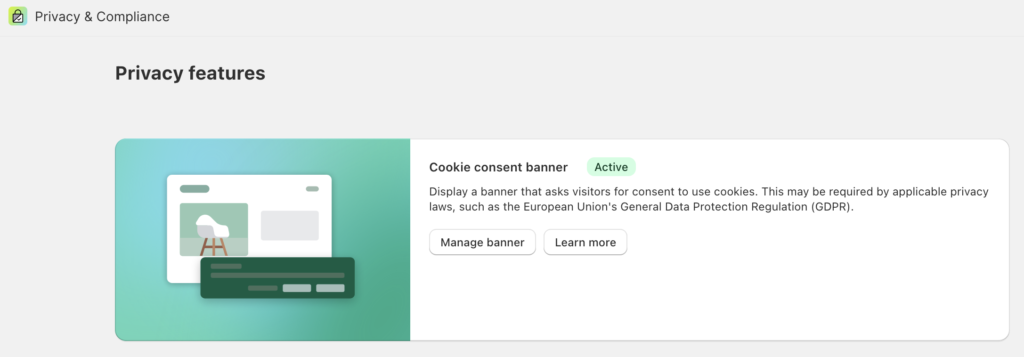
Then we need to set up a GTM account and connect it to whichever external tools you plan to use. Here is Googles instruction for connecting GTM to a Google Analytics 4.
The normal way to add GTM to a website is to copy the provided JS snippets and paste them into your code. Log into GTM and select the admin tab then under container select ‘Install Google Tag Manager’. This will give you two snippets, we are only going to use the first one. The noscript tag would not work with this method because we require JS to access the privacy API.
<!-- Google Tag Manager -->
<script>(function(w,d,s,l,i){w[l]=w[l]||[];w[l].push({'gtm.start':
new Date().getTime(),event:'gtm.js'});var f=d.getElementsByTagName(s)[0],
j=d.createElement(s),dl=l!='dataLayer'?'&l='+l:'';j.async=true;j.src=
'https://www.googletagmanager.com/gtm.js?id='+i+dl;f.parentNode.insertBefore(j,f);
})(window,document,'script','dataLayer','GTM-A0A0A0A0');</script>
<!-- End Google Tag Manager -->
Instead of adding this so that it loads every time a page loads, we are going to wrap it inside the Shopify privacy API initialisation code.
<script>
      window.Shopify.loadFeatures(
        [
          {
            name: 'consent-tracking-api',
            version: '0.1',
          },
        ],
        error => {
          if (error) {
            // Something has gone wrong, contact Rococo Digital @ https://rococodigital.co.uk/contact
          }
          else {
            // If error is false, the API has loaded and ready to use!
            if(window.Shopify.customerPrivacy.currentVisitorConsent().analytics == 'yes'){
              (function(w,d,s,l,i){w[l]=w[l]||[];w[l].push({'gtm.start':
              new Date().getTime(),event:'gtm.js'});var f=d.getElementsByTagName(s)[0],
              j=d.createElement(s),dl=l!='dataLayer'?'&l='+l:'';j.async=true;j.src=
              'https://www.googletagmanager.com/gtm.js?id='+i+dl;f.parentNode.insertBefore(j,f);
              })(window,document,'script','dataLayer','GTM-A0A0A0A0');
            }
          }
        },
      );

    </script>
As you can see, the GTM snippet is wrapped within a check that the user has agreed to using their data for analytic purposes.
I’m sure there are more advanced ways to pass consent settings along to GTM and allow GTM to manage what is fired but relying on Google to track or not track is probably not acceptable under GDPR. Overall this method provides a reliable process which fits nicely within the Shopify infrastructure and you can rest assured that because it uses Shopify’s built in API that users consent settings will always be correct even if they’re changed by another app.