
Google Shopping has no keywords to bid on. Google reads your product feed and decides which searches each product is relevant for. That makes the feed the biggest lever you have: better titles, identifiers and categories mean your products show for the right searches, at a lower cost, before you change a single bid. This guide sets out what to fix first, in order, and how to do it without rebuilding your product pages.
| The short answer Google Shopping feed optimisation means improving the product data you send to Google Merchant Centre so your products match more of the right searches. Fix it in this order: accurate prices and stock, product titles written the way people search, GTINs and brand, your own product types, clean images, then custom labels to structure your campaigns. Most of it can be done with a supplemental data source or attribute rules, without touching your website. |
Why the feed matters more than the bids
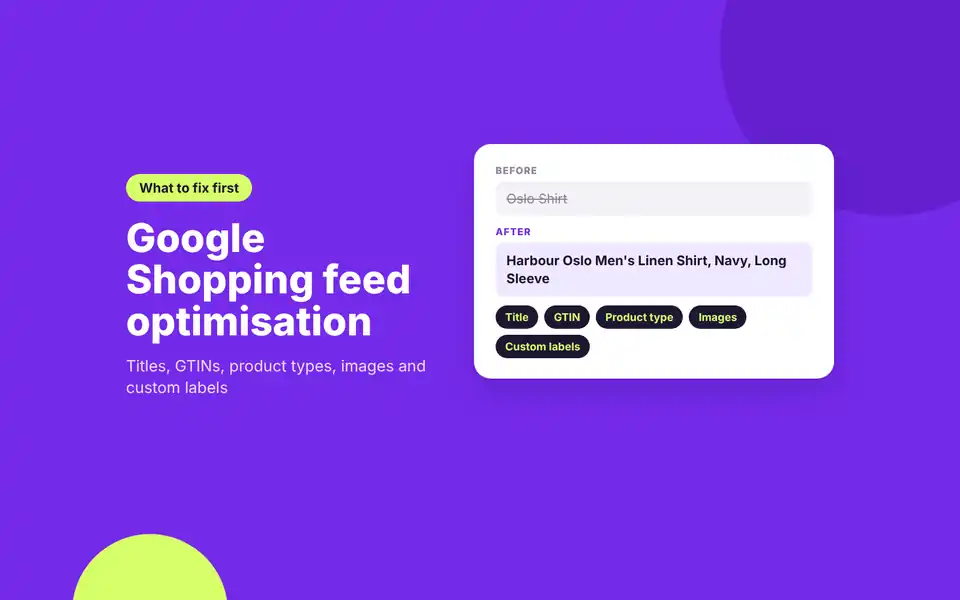
In a search campaign you choose the keywords. In Shopping and Performance Max, Google matches each search to the products whose data fits it best, mainly the title, description, category and identifiers. A product titled “Oslo Shirt” can only show for searches Google can connect to those two words. The same product titled “Harbour Oslo Men’s Linen Shirt, Navy, Long Sleeve” can show for linen shirt, men’s navy shirt and long sleeve linen searches.
Bid changes can only work with the searches your feed already qualifies for. That is why feed work usually comes before campaign work, and why two stores with the same budget can see very different results.
1. Get prices and stock right first
Nothing else matters if products are disapproved. Prices must match the product page and, for the UK, include VAT. Stock status must match too. Sync through Shopify’s Google & YouTube app, Google for WooCommerce or a scheduled feed often enough to keep up with your stock changes. Our Google Merchant Centre guide covers the common disapprovals and how to fix them.
2. Write titles the way people search
The title is the single most important field. Google allows up to 150 characters but says shoppers usually notice only the first 70 or fewer, so put the most important details first. Most platforms send your product page name, which is written for your site, not for search. Use a pattern for each category:
| Category | Title pattern |
|---|---|
| Clothing | Brand + Gender + Product type + Material + Colour + Size |
| Home and garden | Brand + Product type + Material + Size or dimensions + Colour |
| Health and beauty | Brand + Product type + Key benefit or variant + Size or volume |
| Electronics and parts | Brand + Product type + Model + Key specification |
| Own brand or unbranded | Product type + Key attributes + Brand at the end |
Use the words customers use, not internal names. Search Console and your Google Ads search terms report show the exact phrases people use for your products. Leave out promotional text such as “free delivery” or “sale”, which Google does not allow in titles.
3. Add GTINs and brand
For branded products, the GTIN (the barcode number) tells Google exactly which product you sell, so it can match you to searches and comparisons for that product. Use the real barcode from the manufacturer, never a made up one. If your products have no GTIN, such as your own brand or handmade products, send brand and MPN instead.
4. Use your own product types
Google assigns every product to its own category automatically through the google_product_category attribute, and you can override it where it gets it wrong. The product_type attribute is different: it is your own category path, such as “Home > Kitchen > Cookware > Frying Pans”. Google uses the first value for bidding and reporting in your Shopping campaigns, so a clear product type lets you see performance by range and split campaigns sensibly.
5. Improve your images
- Main image. A clean photo of the product on a plain background, with no watermarks, logos or promotional text.
- Size. From 31 January 2027 Google requires all product images to be at least 500 by 500 pixels, and it recommends 1500 by 1500 or larger.
- Extra images. Add up to 10 additional images with additional_image_link, and up to 5 lifestyle images with lifestyle_image_link.
- Product Studio. Merchant Centre’s free Product Studio tools can remove or change backgrounds and increase image resolution, which helps when supplier photos are poor.
6. Tidy descriptions, highlights and details
Descriptions can run to 5,000 characters, but Google recommends putting the most important details in the first 160 to 500. Describe the product, its materials, sizes and uses. Leave out prices, delivery and sale messages. Product highlights (short bullet points of up to 150 characters each) and product details (structured specifications) give Google more to match against and more to show shoppers.
7. Add custom labels for campaign structure
Custom labels are five fields, custom_label_0 to custom_label_4, that shoppers never see. You use them to group products in Performance Max, Shopping and Demand Gen campaigns. Useful labels for most stores:
- Margin band, so high margin products can get a lower ROAS target than low margin ones.
- Best sellers, so proven products get their own budget.
- Season or range, so you can push or pause a range quickly.
- Price band, because cheap and expensive products often need different targets.
- Stock depth, so you stop spending on lines about to sell out.
Margin is the label that changes results most, because it lets you set targets on profit rather than revenue. Our guide to what a good ROAS is explains why the same ROAS can be profitable on one product and a loss on another.
How to make changes without editing your website
You rarely want Shopping titles on your product pages, and you do not need them there. There are three ways to change the feed only:
- A supplemental data source. A Google Sheet matched to your products by ID that adds or overrides fields such as titles and custom labels. Simple and free, and good for a few hundred products.
- Attribute rules in Merchant Centre. Rules that transform your data automatically, for example building titles from brand, colour and size, or setting a custom label from a price band. Google calls these attribute rules (they used to be feed rules), and they need the Advanced data source management add-on switched on.
- A feed management tool. For large catalogues, several channels or frequent changes, a dedicated tool builds and maintains the feed with rules and sends it to Google and other marketplaces.
A sensible order of work
- Clear every disapproval and account warning in Merchant Centre.
- Rewrite titles for your top 20% of products by revenue first, then roll the pattern out by rule.
- Fill in GTIN, brand and MPN.
- Set product types that match how you want to report and bid.
- Fix main images and check sizes ahead of 31 January 2027.
- Add custom labels for margin and best sellers, then restructure campaigns around them.
- Review search terms monthly and feed the words people use back into titles.
When to bring in help
A store with a few dozen products can work through this list in house. Once you have hundreds of products, several brands or ranges, or Shopping is a large share of your revenue, feed work and campaign structure need to be planned together. That is what our Google Shopping agency team does: feed optimisation, Merchant Centre fixes and Performance Max run against margin, as part of wider eCommerce PPC.
Google Shopping feed optimisation FAQs
What is Google Shopping feed optimisation?
It is improving the product data you send to Google Merchant Centre, mainly titles, identifiers, categories, images and custom labels, so your products show for more relevant searches in Shopping and Performance Max.
How long can a Google Shopping title be?
Up to 150 characters. Google says shoppers usually notice only the first 70 or fewer, so put the most important words first.
Do I need a feed management tool?
Not to start. Most Shopify and WooCommerce stores can do a lot with the native Google apps, a supplemental data source in a Google Sheet and attribute rules in Merchant Centre. A feed tool earns its cost with large catalogues, several sales channels or frequent changes.
What are custom labels used for?
Custom labels group your products inside Performance Max, Shopping and Demand Gen campaigns. You get five, shoppers never see them, and they are most useful for margin bands, best sellers, seasons, price bands and stock depth.
Will changing my feed titles change my website?
No, not if you make the change in a supplemental data source, attribute rules or a feed tool. Those change what Google receives and leave your product pages as they are.