
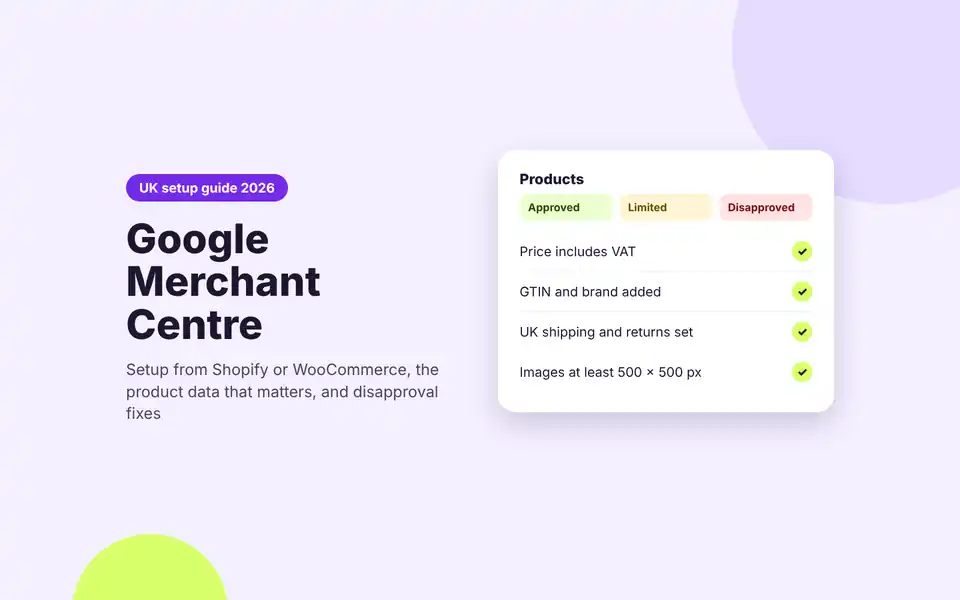
Google Merchant Centre is where your products live before Google shows them anywhere. If you sell online in the UK and want to appear in Google Shopping, whether through free listings or paid Shopping ads, every product has to pass through it first. This guide covers what it is, what changed in 2025 and 2026, how to set it up from Shopify or WooCommerce, and how to fix the problems that stop products showing.
| The short answer Google Merchant Centre is a free Google tool that holds your product data: titles, prices, stock, images and shipping. Google uses it to show your products in free listings across Search, the Shopping tab, Images, YouTube and more, and it feeds paid Shopping and Performance Max campaigns in Google Ads. In the UK, set it up by verifying your website, adding shipping and returns, then connecting your store through Shopify’s Google & YouTube app or the Google for WooCommerce extension. Prices must include VAT. |
What is Google Merchant Centre?
Google Merchant Centre (Google spells it Merchant Center) is a free account where you upload and manage your product information. Think of it as the catalogue Google reads. On its own it does not advertise anything. It does two jobs:
- Free listings. Approved products can appear at no cost on Google Search, the Shopping tab, Google Images, Lens, YouTube, Maps and Gemini. Google does not guarantee a product will be shown, but there is nothing to pay.
- Paid Shopping ads. Linked to Google Ads, the same product data powers Shopping campaigns and Performance Max, where you pay per click.
Either way, the quality of your product data decides how often you show and for which searches. That is why most of the work in Google Shopping happens in Merchant Centre and the feed behind it, not in the ad account.
What changed in 2025 and 2026
If you set your account up a few years ago, four changes matter.
- “Merchant Center Next” is now just Merchant Center. Google rebuilt the interface as Merchant Center Next, rolled it out to merchants from 2023, and in July 2026 dropped the “Next” from the name. Older guides that refer to Feeds, Diagnostics and other menus from the classic layout no longer match what you see.
- The Content API for Shopping has been switched off. It reached its sunset on 18 August 2026 and has been replaced by the Merchant API. If your feed comes from a third party app, plugin or custom script, check it moved to the Merchant API. Old connections can fail without much warning.
- Product data rules changed in 2025. Member and loyalty prices can no longer go in the price or sale price fields and now use the loyalty programme attribute. New shipping attributes let you give handling and transit times in business days.
- Image rules are tightening. Google has announced that from 31 January 2027 all product images must be at least 500 by 500 pixels, and it recommends 1500 by 1500 or larger. Check your catalogue now rather than waiting for disapprovals.
How to set up Google Merchant Centre in the UK
1. Create the account and add your business details
Sign in at merchants.google.com with the Google account your business uses, ideally a shared company login rather than a personal one. Add your business name, UK address and customer service contact details. These are checked against your website, so make sure they match.
2. Verify and claim your website
Merchant Centre needs to know you own the store you are listing. If your Google Search Console or Google Tag Manager uses the same login, verification is usually one click. Otherwise add the HTML tag Google gives you. Shopify and WooCommerce’s own Google integrations handle this step for you.
3. Set up shipping and returns
UK sellers need shipping costs set up, either in the account’s shipping settings or in the product data. Add delivery times and a returns policy too. Missing or inaccurate shipping is one of the most common reasons products are held back, and Google shows delivery and returns information to shoppers, so it affects clicks as well as approval.
4. Add your products
How you do this depends on your platform:
- Shopify. Install the Google & YouTube app from the Shopify App Store. It syncs your products and store information to Merchant Centre automatically and keeps prices and stock up to date.
- WooCommerce. Install Google for WooCommerce, the free official extension. It syncs products to Merchant Centre and can set up Performance Max campaigns from inside WordPress.
- Other platforms or larger catalogues. Upload a product file (a Google Sheet, CSV or XML feed on a schedule), connect through the Merchant API, or use a feed management tool that builds the feed and applies rules for you.
The native apps are the right start for most stores. Once you need custom titles, extra attributes or different data for ads and free listings, a supplemental feed or a feed tool gives you that control without changing your product pages. Our guide to Google Shopping feed optimisation covers what to change first.
5. Turn on free listings and link Google Ads
Make sure free listings are switched on so approved products can show at no cost. To run paid Shopping or Performance Max, link Merchant Centre to your Google Ads account and accept the link inside Google Ads. Set up conversion tracking before you spend anything, and if you sell to UK and EU shoppers, make sure Google Consent Mode v2 is in place so Google can still measure sales.
The product data that matters
Google’s product data specification lists dozens of attributes. These are the ones every UK store needs to get right.
| Attribute | What it needs |
|---|---|
| id | A unique, stable ID for each product or variant. Changing IDs resets a product’s history. |
| title | What the product is, in the words shoppers search: brand, product type and key details such as size, colour or material. |
| description | An accurate description of the product. No promotional text or links. |
| link | The product page on your verified website. |
| image_link | A clear photo of the product itself, with no watermarks, logos or promotional text over it. |
| price | The price shoppers pay on your site, including VAT for UK products. |
| availability | In stock, out of stock, preorder or backorder, matching the product page. |
| brand | Required for products with a clear brand or manufacturer. |
| gtin or mpn | The barcode number (GTIN) where the manufacturer assigned one. If there is no GTIN, the manufacturer part number (MPN). |
| condition | Required if the product is used or refurbished. |
| shipping | Set in account settings or per product. Needed for UK listings. |
Two UK points catch stores out. First, prices must include VAT, and the tax attribute is for the US and Canada only, so leave it out. Second, the price in your feed must match the price on the page when Google crawls it. Merchant Centre can update prices automatically from the structured data on your product pages, which helps when prices change often, but only when Google recrawls the page.
Why products get disapproved, and how to fix them
Merchant Centre flags problems against each product and, for some issues, against the whole account. These are the ones we fix most often on UK stores.
| Problem | Usual cause | Fix |
|---|---|---|
| Mismatched price | Feed price excludes VAT, a sale price ended on the site but not in the feed, or currency differs | Send VAT inclusive prices in GBP, sync sale dates, and check the price in the page’s structured data |
| Mismatched availability | Stock changed on the site faster than the feed updated | Sync more often through the native app or API, and make sure the page’s structured data shows the same stock status |
| Missing or incorrect identifiers | No GTIN for branded products, or a made up GTIN | Add the real barcode from the manufacturer. For own brand products with no GTIN, give brand and MPN |
| Image issues | Watermarks, logos, promotional text or placeholder images | Use a clean product photo on a plain background at a high resolution |
| Missing shipping | No UK shipping cost set | Add shipping settings for the UK in the account, or shipping in the feed |
| Misrepresentation (account level) | Missing contact details, unclear returns or delivery terms, or claims Google cannot verify | Add full contact details, clear returns, delivery and payment pages, and remove claims you cannot back up. Then request a review |
Free listings or Shopping ads?
Start with both switched on. Free listings cost nothing and give approved products extra visibility, but you have little control over when they show. Shopping ads and Performance Max put your products at the top of search results for the searches you choose to pay for, and they are where most stores get the bulk of their Shopping sales.
The same data feeds both, so a clean, well optimised feed improves free and paid results together. Where stores lose money is running paid campaigns on a weak feed: vague titles, missing identifiers and broad campaign structures that spend on searches that never convert.
When to get help
A small catalogue on Shopify or WooCommerce can run Merchant Centre in house with the native app. It is worth bringing in a specialist when you have hundreds of products or more, when account level warnings or a misrepresentation suspension will not clear, or when Shopping is a large share of your sales and you want feed and campaign work done together. That is the work our Google Shopping agency team does every week, alongside Google Ads management for search campaigns.
Google Merchant Centre FAQs
Is Google Merchant Centre free?
Yes. Merchant Centre and free listings cost nothing. You only pay when you run Shopping or Performance Max campaigns in Google Ads, and then you pay per click.
What is the difference between Merchant Center and Merchant Center Next?
Merchant Center Next was the name Google gave its rebuilt, simpler version of Merchant Center. In July 2026 Google dropped the “Next”, so the current version is just called Google Merchant Center.
Should UK prices in Merchant Centre include VAT?
Yes. For UK products the price must include VAT and match the price shoppers see on your site. Do not use the tax attribute, which only applies to the US and Canada.
How do I connect Shopify to Google Merchant Centre?
Install the Google & YouTube app from the Shopify App Store and connect your Google account. It creates or links a Merchant Centre account and keeps your products in sync.
How do I connect WooCommerce to Google Merchant Centre?
Install Google for WooCommerce, the free official extension, and connect your Google account. It syncs your products to Merchant Centre and can also set up Performance Max campaigns.
Why are my products not showing on Google Shopping?
Check the products page in Merchant Centre for disapprovals and account level issues first. The usual causes are mismatched prices or stock, missing GTINs, missing UK shipping, image problems or a misrepresentation suspension. Approved products can also show rarely if titles do not match what people search for.
Sources
- Google: Product data specification
- Google: Merchant Center product data specification update 2025
- Google: Inaccurate prices due to VAT related issues
- Google: About free listings
- Google for Developers: Content API for Shopping deprecation and sunset
- PPC Land: Google drops the Next from Merchant Center name
- Shopify Help Centre: Google & YouTube channel
- WooCommerce: Google for WooCommerce