
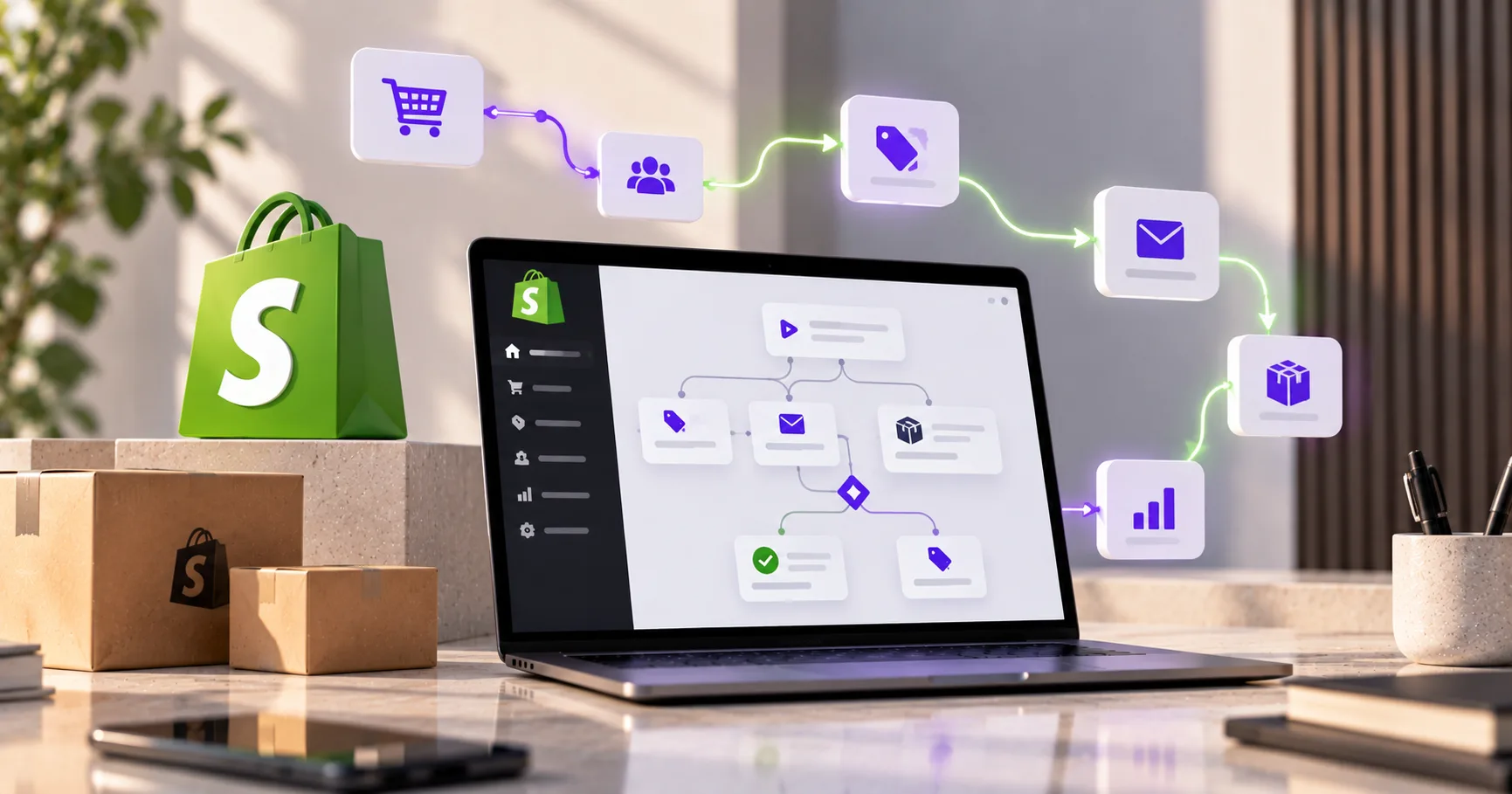
Shopify Flow used to be one of the main reasons to upgrade to Shopify Plus. It no longer is. Flow is now a free app on every Shopify plan from Basic upwards, and most of what it does works the same on all of them. What Plus still changes is how much Flow can do, what it can connect to, and the automation that sits around it, such as Launchpad and custom Shopify Functions. This guide explains how Flow works, what is still Plus only, the workflows worth building first, and how to keep automation from becoming a mess nobody understands. Plan details come from Shopify’s own help centre and developer docs.
| The short answerShopify Flow is a free automation app on the Basic, Grow, Advanced and Plus plans, so you do not need Shopify Plus to use it. Each workflow is a trigger, conditions and actions: for example, when an order is created, check its risk level, then cancel it or capture payment. Plus adds the most headroom, because Flow’s usage limits follow your plan’s API limits, and it is the only plan that can use tasks from custom partner apps. Plus also brings Launchpad for scheduled sales and custom Shopify Functions for discount, delivery and payment logic. The Send HTTP request action, which connects Flow to other systems, needs Grow or above. |
What Shopify Flow is
Shopify describes Flow as an ecommerce automation platform that watches your store for events and runs a sequence of actions in response. Instead of someone checking orders, tagging customers or hiding sold out products by hand, a workflow does it the same way every time.
Every workflow is built from three parts:
- Trigger. The event that starts it, such as an order being created, inventory changing or a customer being created.
- Condition. The rule that decides what happens next, such as whether the order is high risk, the order total is over a set amount or the customer has a certain tag.
- Action. What Flow does, such as adding a tag, sending an internal email, hiding a product, capturing payment or calling another app.
Shopify’s template library has hundreds of ready-made workflows, and many apps add their own triggers and actions to Flow. That is usually the fastest way to start: pick a template that is close to what you need, then adjust the conditions.
Is Shopify Flow only for Shopify Plus?
No. This is a common question about Flow, because for years it was a Plus feature. Today Shopify says Flow is a free app available on the Basic, Grow, Advanced and Plus plans. The differences are at the edges:
| Capability | Basic | Grow | Advanced | Plus |
|---|---|---|---|---|
| Shopify Flow app | Yes, free | Yes, free | Yes, free | Yes, free |
| Send HTTP request action | No | Yes | Yes | Yes |
| Tasks from custom partner apps | No | No | No | Yes |
| Usage limits | Set by plan API limits | Set by plan API limits | Set by plan API limits | Highest, set by Plus API limits |
| Launchpad for scheduled events | No | No | No | Yes |
| Custom apps with Shopify Functions | No | No | No | Yes |
Two of those rows are not Flow itself, but they are part of the same decision. Launchpad, which Shopify says is available only on Plus, schedules sales and launches: price changes at the start and end of an event, products released to sales channels at a set time, theme changes and password protection before a drop. Custom Shopify Functions, which only Plus stores can run, let you write your own discount, delivery and payment logic, while public App Store apps that use Functions work on every plan.
Workflows worth building first
The best first workflows remove a repetitive job someone already does every day. All of the examples below are based on templates Shopify lists in its help centre.
| Area | Workflow | Why it helps |
|---|---|---|
| Risk and payments | Capture payment if the order is not high risk, and cancel and restock high risk orders | Takes manual fraud checks off the team and stops risky orders reaching the warehouse |
| Inventory | Get notified when product inventory is low | Gives buyers time to reorder before a best seller sells out |
| Merchandising | Hide and republish products based on inventory level | Keeps sold out products out of collections and brings them back when stock arrives |
| Demand | Get notified when demand increases for out of stock products | Shows which products to reorder first |
| Orders | Email the logistics team when orders need to be expedited | Gets urgent orders in front of the right people without anyone watching the queue |
| Orders | Get notified about irregularly large order quantities | Catches mistakes, resellers and fraud before fulfilment |
| Customers | Organise customers by lifetime spend tiers | Feeds VIP segments in your email platform and loyalty programme |
| Promotions | Get notified about large discounts on new orders | Spots misused or leaked discount codes quickly |
| B2B | Tag B2B orders and send an internal email when a B2B order is placed | Keeps trade orders visible and routed to the right team |
| B2B | Payment reminder sent on and after the due date | Chases trade invoices on payment terms without manual follow up |
| Monitoring | Get notified by email when workflow run errors are detected | Tells you when an automation fails, rather than finding out from a customer |
If you sell to trade customers, the B2B templates are a good place to start, because trade orders tend to need more checks and more people involved. Our guide to B2B eCommerce covers what a trade operation needs from its platform.
Connecting Flow to other systems
Flow works with your other tools in three ways. Many apps add their own triggers and actions to Flow, so workflows can react to, or update, data in those apps. The Send HTTP request action, on Grow and above, lets a workflow send data to another system such as an ERP, a warehouse platform or an internal tool. And on Plus, tasks built by custom partner apps let a developer create triggers and actions made for your business.
For anything that needs logic beyond the standard conditions, Flow has a Run code action. Shopify’s documentation says it runs JavaScript, with limits: it cannot import modules or make external HTTP calls, code is capped at 50,000 characters, and each run is limited to 5 seconds and 10MB of memory. It is useful for reshaping data, such as converting tags into metafields, but it is not a replacement for a proper integration.
When the job is moving orders, stock and customers reliably between Shopify and an ERP or 3PL, use a dedicated integration and keep Flow for the rules around it. Our Shopify development team builds both, and scopes which belongs where before anything is automated.
Flow, Launchpad and Shopify Functions: which does what?
Shopify has three automation tools that are easy to confuse. They solve different problems:
| Tool | What it automates | Plans |
|---|---|---|
| Shopify Flow | Back office rules: tagging, notifications, inventory, risk, customer segmentation, calling other apps | All plans, with Plus extras |
| Launchpad | Scheduled events: price changes, product releases, theme changes and store password protection at set times | Plus only |
| Shopify Functions | Logic inside the buying journey: custom discounts, delivery options and payment methods | Public apps on all plans; custom apps on Plus only |
A big Plus sale can use all three: Launchpad changes prices and swaps the theme at midnight, Functions apply the discount rules at checkout, and Flow tags the orders, watches stock and alerts the team if something goes wrong. Shopify Scripts used to cover some of the checkout logic, but Scripts stopped working on 30 June 2026, so any checkout customisation now needs Functions or checkout extensions.
How to run Flow without creating chaos
Automation is easy to add and hard to unpick. The stores that get the most from Flow treat workflows like code:
Name everything clearly. A name like “Orders: tag B2B orders and email trade team” tells the next person what it does without opening it.
Keep one owner. Someone on the team should know what every live workflow does, and approve new ones.
Test on a small scope first. Limit a new workflow with a condition, such as one product or one tag, before letting it act on every order.
Watch for loops. A workflow that edits a product can trigger another workflow that edits the same product. Check what each action could set off.
Turn on error alerts. Shopify has templates that email you or send an alert when workflow runs fail. Use one from day one.
Review apps against workflows. If a workflow now does what an app used to, cancel the app. Our Shopify Plus pricing guide shows how replacing apps changes the cost of Plus.
The mistakes we see most often
- Upgrading to Plus just for Flow. Flow is free on every plan. Upgrade for the things that are Plus only, not for Flow itself.
- Automating a broken process. If the manual process is wrong, Flow will do the wrong thing faster. Fix the process first.
- Using Flow as an integration platform. HTTP requests and code steps are fine for light jobs, but order and stock sync with an ERP needs a proper integration.
- No one owning the workflows. After a year, nobody knows why products keep disappearing. Document as you go.
- Forgetting the customer. Workflows that cancel orders or hide products affect real customers. Test the edge cases.
If you are on Shopify Plus, or deciding whether to move, our Shopify Plus agency team scopes automation alongside the build so Flow, Launchpad and Functions each do the job they are best at. Our Shopify vs Shopify Plus guide covers the rest of the plan comparison.
Frequently asked questions
No. Shopify Flow is a free app on the Basic, Grow, Advanced and Plus plans. Plus adds the highest usage limits, because Flow’s limits follow your plan’s API limits, and it is the only plan that can use tasks from custom partner apps. The Send HTTP request action needs Grow or above.
Yes. Shopify Flow is a free app from Shopify that you install from the Shopify App Store. Some apps that connect to Flow have their own subscription costs.
Flow automates tasks in your store and across your apps. Common workflows tag orders and customers, alert the team about low stock, large orders or failed runs, hide and republish products based on inventory, cancel high risk orders, and chase B2B payments on payment terms.
Flow runs rules in response to events, such as an order being created or stock changing. Launchpad, which is Shopify Plus only, schedules events such as price changes, product releases, theme changes and store password protection at set times. Plus stores can use both together for big sales and launches.
Partly. The Send HTTP request action on Grow and above can send data to another system, and many apps add their own Flow triggers and actions. For reliable order, stock and customer sync with an ERP or 3PL, use a dedicated integration and keep Flow for the rules around it.
Run code lets a workflow run JavaScript to transform data. Shopify says it cannot import modules or make external HTTP calls, code is limited to 50,000 characters, and each run is limited to 5 seconds and 10MB of memory.
Not for most workflows. Templates and the visual editor cover common tasks. You need a developer for HTTP request integrations, Run code steps and, on Shopify Plus, custom partner app tasks or custom Shopify Functions.
Related reading: What is Shopify Plus?, Shopify vs Shopify Plus, Shopify Plus pricing and Shopify Plus international.
| Want automation that saves your team real hours?A 30 minute call with the co-founders who run our Shopify Plus projects. We will look at the jobs your team repeats every day and tell you which belong in Flow, which need Launchpad or Functions, and which need a proper integration. Book a growth call. |